Sometimes you need to upgrade specific or a large number business templates of a running erp5 instance. This howto outlines the steps involved. It will not show you how to update erp5 itself (core, base business templates).
Table of Contents
Pull updates in Webrunner
Note, that this is not the official way, which would be pulling updates at the location specified in your software.cfg file, which would also take care of updating ERP5 Core (Products, etc) itself. For more info, refer to how to update an ERP5 instance.
Log in to your webrunner and use the terminal (or SSH) to navigate to software/[software_release_path]/parts/erp5
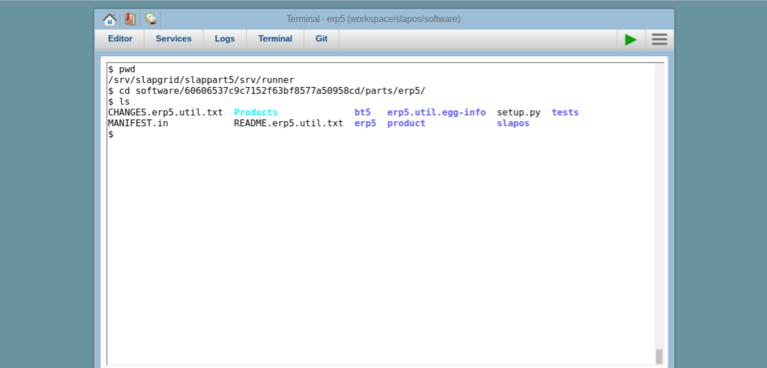
In case you have more one [software-release]s in your software folderyou can find the correct one, also using the terminal:
- Go to your instance and the slappart containing ERP5 (zeo-default, see in Services).
- Enter
ls -l and you should see the software release being used.
Alternatively you can find the correct release in your ERP5 repository information. To see this info, from Favorites, select Manage Business Templates and select the "Import/Export" Icon to reach the update dialog.
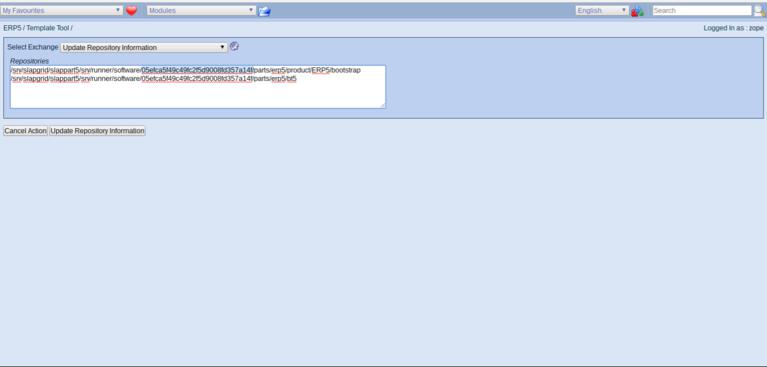
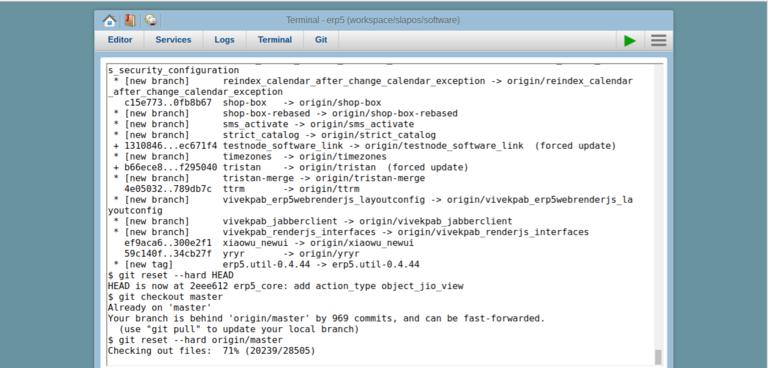
Once there verify remotes are set correctly (to https://lab.nexedi.com/nexedi/erp5) and enter:
  git fetch
  git reset --hard HEAD
  git checkout master
  git reset --hard origin/master
Alternatively you can use:
git pull --rebase
to update your repository to the latest version.
Run genbt5list in Webrunner
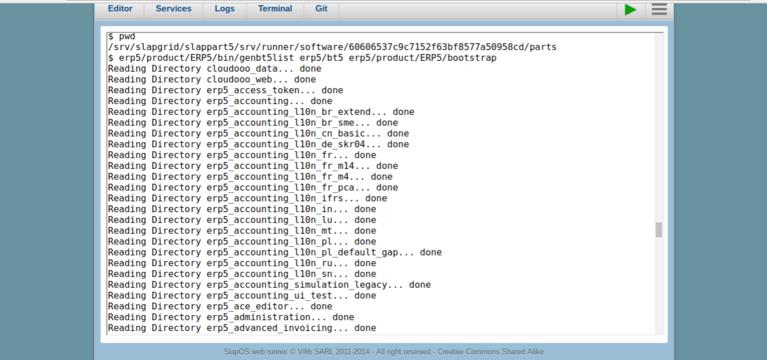
Next you have to update the reference list of bt5s used by ERP5. Without updating this list, the pulled files will not show up as the bt5 list will still reflect the previous version. Go back to the parts/erp5 directory and call:
product/ERP5/bin/genbt5list bt5 product/ERP5/bootstrap
to rerun the bt5list generation.
Once this is done, you can go to your ERP5 instance and update from repositories.
Update Business Templates inside ERP5
Back in Manage Business Templates select the "Import/Export" Icon again and first select Update Repository Information and click the same button, too.
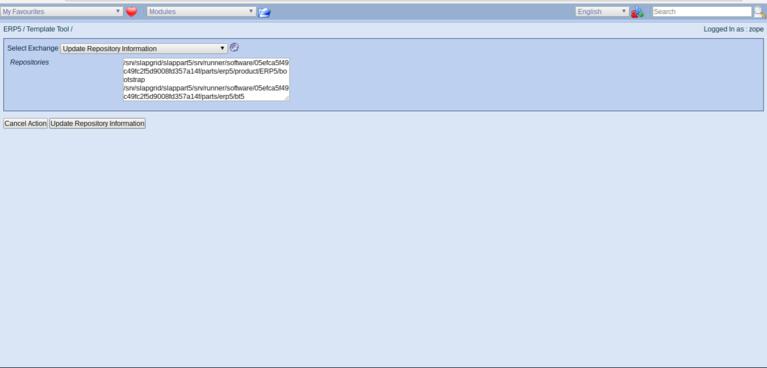
This step is necessary to "pull-in" the latest business template information retrieved via the prior call to genBt5List. Once this is done, select Update Business Template From Repositories.
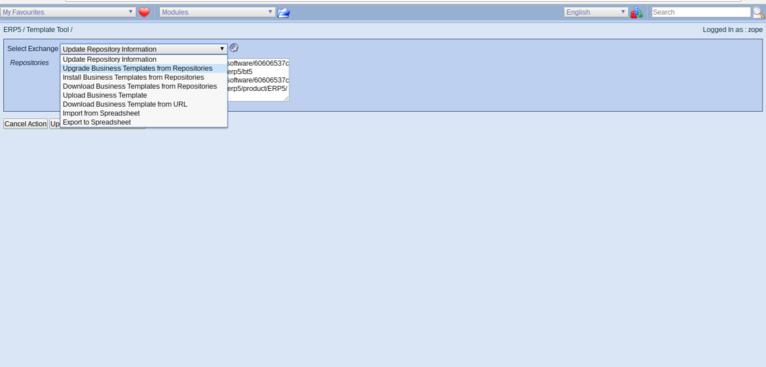
Note that when you want to update ERP5 itself (erp5_core), you should do this using the upgrader (please see Troubleshooting below for details). The list will now reflect the latest version of the respective business templates. Select all business templates you want to update and click Update Business Templates from Repositories. The following menu will show all files that will be modified.
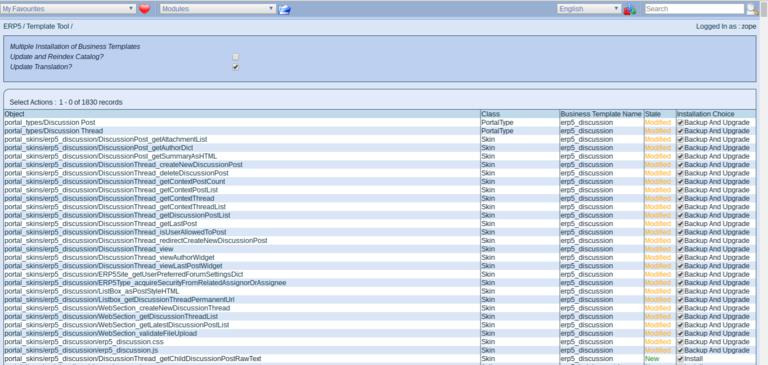
Validate the changes and ERP5 will update.
Troubleshooting
Missing Dependencies
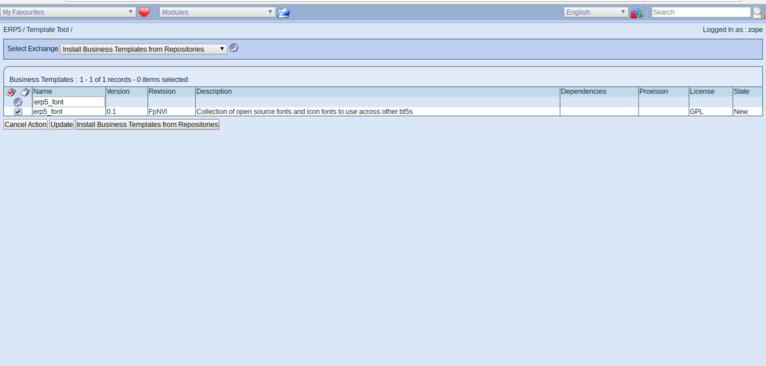
The above steps will udpate existing business templates. In case there are any new dependencies introduced to those business templates, you need to install these separately. To do so, select Update Repository Information and then Install Business Templates from Repositories. Locate the missing business templates and install them.
Activities Not Finishing
Depending on the number of templates being updated, there might be errors due to unfinished activities. To fix these, please refer to how to debug ERP5 portal activities.
Use the ERP5 Upgrader when updating ERP5 itself
When updating ERP5 itself (erp5_core), make sure to use the upgrader. Install the business template erp5_upgrader and once installed, restart all zopes in your webrunner and go the following url:
[your_instance]/erp5/portal_alarms/promise_check_upgrade
Call
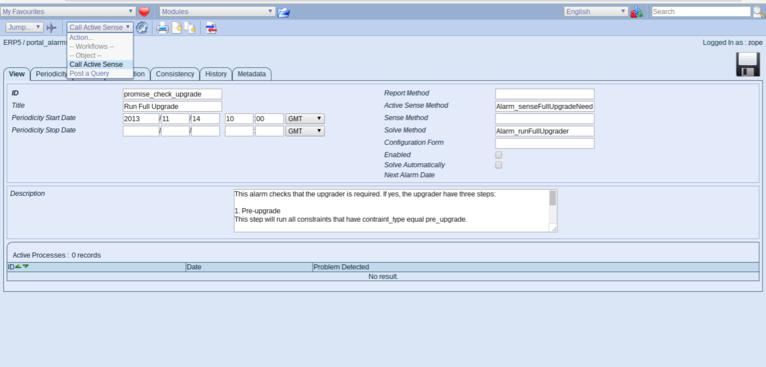
Check the portal activities to see when the upgrader is done and the error log in case it ran into any problems (how to debug ERP5 portal activities).
Related Articles