This document should show a user how to setup the ERP5Forge business template to be able to use git inside ERP5.
Please note that this document doesn't concern Products (or ERP5 Core) development.
Table of Contents
Installing ERP5Forge
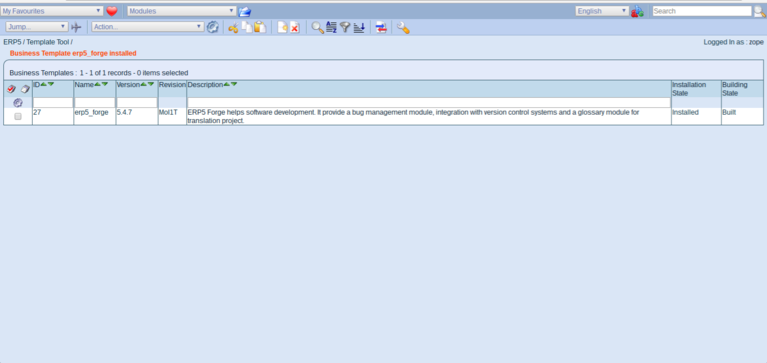
Start by installing the ERP5Forge business template (bt5). See How To Install Business Templates in case you don't know how to work with business templates.
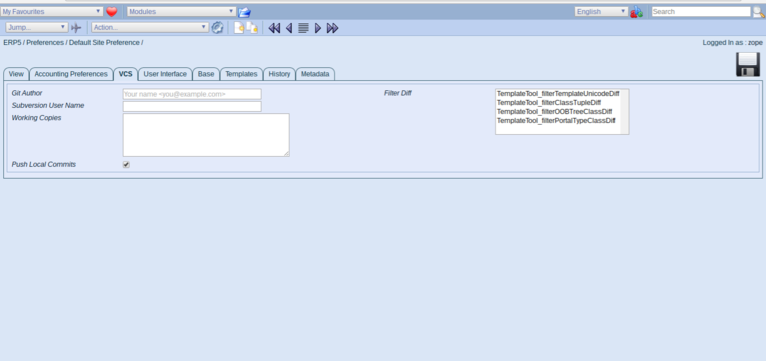
To be able to connect from within ERP5 to the repository you'll first need to update your preferences. Navigate to your preferences:
My Favorites > Preferences
and locate the VCS tab which has been added when installing ERP5Forge.
Setting Your Working Copies
The Working Copies Preference needs to contain the location of the working copies of your "git" repositories and is required to use git from within ERP5. Normally, you should have already setup your working copies of the git repositories, if not go to How To Contribute To ERP5 (chapter 2.1).
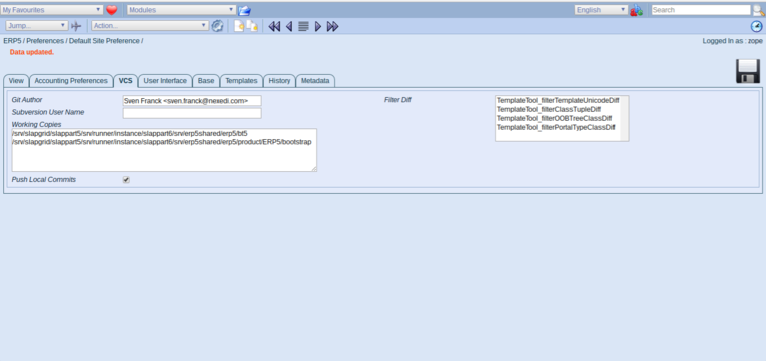
You should have a fresh erp5 repository containing 2 sub-directories where BT5s can be found : erp5/bt5, and erp5/product/ERP5/bootstrap. You can retrieve their exact paths by cd into them and then running pwd.
Tell ERP5 About The Path To Bt5s
The final step is to add these BT5 paths to the working copies field inside ERP5. Include your email address and save.
Commit Your Bt5
If this is a newly created BT5, don't forget to create a working copy. See How To Commit New Business Template
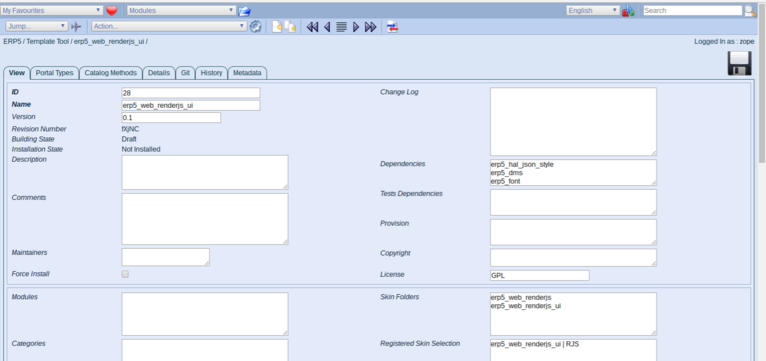
If you now navigate back to business templates and clone an existing template you should have the Git tab available to commit the changes you have made.
Working with the ERP5Forge Bt5
Please refer to How To Use Git In ERP5 for learning how to work with this buinesss template and commit your code to a repository.
Troubleshooting
If the Git tab does not show up, you can check any of the following:
Check That The Bt5 ERP5Forge is installed
Check the beginning of this tutorial
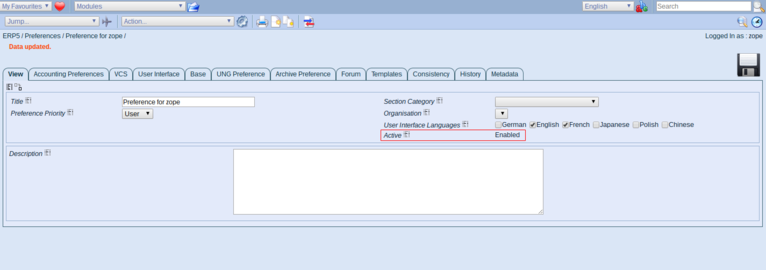
Ensure Preference is activated
Make sure your preferences are active. For this, check the Active property of your preferences :
Ensure the business template you want to edit is not installed
Only business templates with the Installation State "Not Installed" will have the Git tab.
Related Articles