In ERP5, Sale / Purchase Orders are a step in the Trade Process. They can be easily created through the 'Sale / Purchase Orders' modules.
Table of Contents
Steps
The procedure goes as follows:
- Go to 'Sale/Purchase Orders' modules thanks to the 'Modules' menu
- Create a new 'Sale/Purchase Orders' thanks to the 'new' icon
 or using 'Action' >> 'Add Sale/Purchase Order'
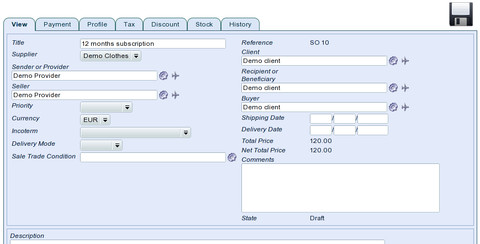
- Fill in the fields:
- Title: Choose a Title to the Order
- Supplier: Choose supplier in the list
- Sender or Provider: The Organisation or Person who sends merchandises or provides services
- Seller: The Person or Organisation in charge of handling the sales process or taking sales decision
- Priority: Choose the priority of the Order
- Currency: Choose the currency in which is made the Order
- Incoterm: Choose the Incoterm applied to the Order
- Delivery Mode: Choose the Delivery Mode
- Sale Trade Condition: Choose the Sale Trade Condition to apply
- Client: The invoiced Person or Organisation
- Recipient or Beneficiary: The Person or Organisation to who is delivered the Merchandises or services
- Buyer: The Person or Organisation in charge of selecting the supplier or taking the decision to place the order
- Shipping Date: Choose Shipping Date
- Delivery Date: Choose Delivery Date
- Comments: You can add comments
- If not configured in Trade Condition:
- Then you can change workflow state of the order using 'Action' menu.
Related Articles